🚀 Introduction
If your PC struggles to generate AI images or your GPU keeps running out of VRAM, you're not alone. Many Stable Diffusion users hit the same wall:
- Slow image generation
- CUDA out-of-memory errors
- PC overheating
- System freezing during renders
The good news? You can run Stable Diffusion on GPU RDP and bypass these hardware limits completely. With a remote GPU server, you get powerful RTX performance, high VRAM, and 24/7 uptime — without upgrading your local machine. In this guide, I'll walk you step-by-step through the exact process used by professionals.
📌 Featured Snippet — Quick Answer
Running Stable Diffusion on GPU RDP means installing Stable Diffusion on a remote Windows or Linux server with a dedicated GPU (RTX/CUDA). You connect via Remote Desktop, install AUTOMATIC1111 or ComfyUI, and generate AI images using the server's VRAM instead of your local PC.
⚡ TL;DR Quick Summary
Want the fast version?
- Rent a GPU RDP (RTX recommended)
- Connect via Remote Desktop
- Install Python, Git, and CUDA drivers
- Clone AUTOMATIC1111 or install ComfyUI
- Launch the WebUI
- Start generating images
If you want a ready-to-use GPU RDP for Stable Diffusion, BuyRDPLive is a simple place to start.
🧠 What Is Stable Diffusion on GPU RDP?
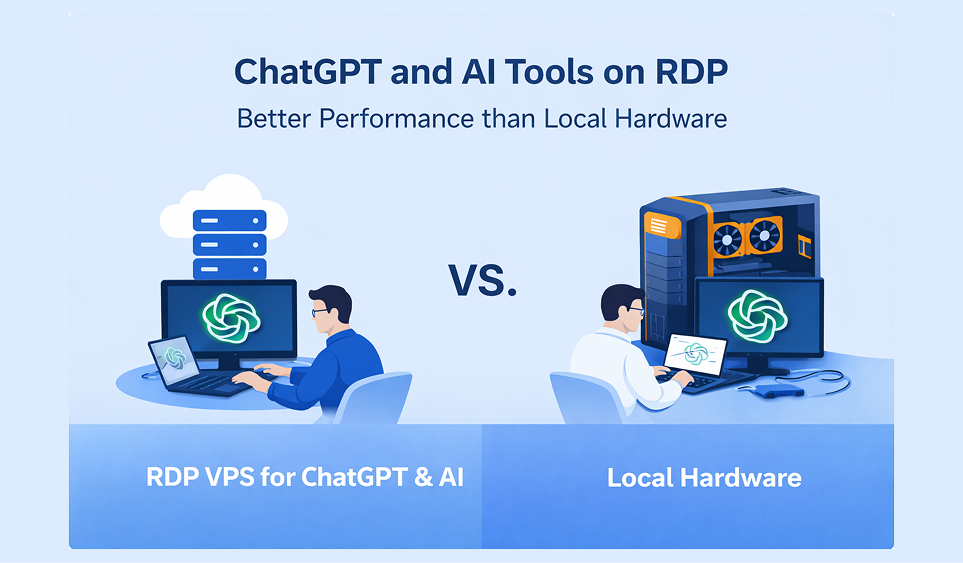
Running Stable Diffusion on GPU RDP means: the AI model runs on a remote cloud GPU; you access it through Remote Desktop; your local PC acts only as a viewer.
Key components involved:
- Stable Diffusion
- CUDA
- VRAM
- RTX GPU
- Remote Desktop Protocol (RDP)
- AUTOMATIC1111 or ComfyUI
This setup is extremely popular among: AI creators, freelancers, agencies, automation users.
🔥 Why Run Stable Diffusion on a Remote GPU Server
✅ 1. No Local Hardware Limits — Stable Diffusion is VRAM-hungry. Typical problems on local PCs: 4GB–6GB VRAM not enough, GPU overheating, slow renders. A cloud GPU solves this instantly.
✅ 2. Much Faster Image Generation — Remote RTX GPUs provide higher CUDA cores, more VRAM, better batch processing. Result: 2x–10x faster generation (depends on GPU).
✅ 3. 24/7 AI Processing — Perfect for bulk image generation, AI automation, client work. Your server keeps running even when your PC is off.
✅ 4. Work From Anywhere — You can access your AI server from laptop, office PC, or tablet.
🖥️ Minimum System Requirements
Before you install Stable Diffusion on a remote desktop, ensure your GPU RDP has:
Recommended GPU: NVIDIA RTX series, CUDA support, minimum 8GB VRAM (12GB+ ideal).
Required Software: Windows Server or Linux, Python 3.10, Git, CUDA drivers, Remote Desktop access.
Always check the latest specs on your provider's page.
🛠️ Step-by-Step: Run Stable Diffusion on GPU RDP
Let's get practical.
Step 1 — Get a GPU RDP
Choose a provider offering: RTX GPU, high VRAM, fast SSD, good uptime. Many users start with BuyRDPLive because it provides pre-configured GPU RDP options.
Step 2 — Connect via Remote Desktop
On Windows: Open Remote Desktop Connection → Enter server IP → Login with credentials. You are now inside your remote machine.
Step 3 — Install Required Dependencies
Install: Python 3.10, Git, NVIDIA CUDA drivers.
Verify CUDA:
nvidia-smiIf the GPU appears — you're good.
Step 4 — Clone AUTOMATIC1111 WebUI
Open terminal and run:
git clone https://github.com/AUTOMATIC1111/stable-diffusion-webuiThen:
            cd stable-diffusion-webui
            webui-user.bat
First launch may take time.
Step 5 — Access the Web Interface
After launch, open:
http://127.0.0.1:7860Inside RDP browser. You can now generate images.
Step 6 — Add Models (Checkpoint)
Download a model and place it in:
models/stable-diffusionRestart WebUI. Done.
🔧 AUTOMATIC1111 vs ComfyUI on RDP
- Beginner friendly: AUTOMATIC1111 → Yes ✓ | ComfyUI → Medium ⚠
- Node workflow: AUTOMATIC1111 → No | ComfyUI → Yes ✓
- Performance: AUTOMATIC1111 → Good | ComfyUI → Excellent
- Learning curve: AUTOMATIC1111 → Easy | ComfyUI → Higher
- Best for: AUTOMATIC1111 → Most users | ComfyUI → Power users
Recommendation: Beginners → AUTOMATIC1111. Advanced pipelines → ComfyUI.
🌍 Real-World Use Cases
🎨 AI Image Creators — character art, product mockups, thumbnails.
💼 Freelancers — client image generation, bulk renders, print-on-demand assets.
🏢 Agencies — marketing creatives, ad variations, automated pipelines.
🤖 Automation Users — AI bots, scheduled generation, API workflows.
❌ Common Mistakes and Fixes
Problem: CUDA out of memory. Fix: use lower resolution, enable xformers, upgrade VRAM.
Problem: WebUI not opening. Fix: check port 7860, restart WebUI, disable firewall block.
Problem: Slow performance. Fix: verify GPU active with nvidia-smi, avoid CPU fallback, use SSD storage.
👍 Pros and Cons
- ✅ Pros: No local GPU needed, scalable performance, remote access, stable environment, 24/7 uptime
- ❌ Cons: monthly cost, requires setup knowledge, internet dependency
👥 Who Should Use GPU RDP for Stable Diffusion
This setup is ideal for: AI artists, freelancers, agencies, SaaS builders, automation developers, users with low-end PCs. If your local GPU has less than 8GB VRAM, remote GPU is usually worth it.
🧠 Expert Performance Tips
- Enable xFormers
- Use half-precision (fp16)
- Keep drivers updated
- Use SSD storage
- Monitor VRAM usage
- Avoid running heavy apps in RDP
🔐 Security Checklist for Private RDP
- Change default RDP port
- Use strong passwords
- Enable Windows firewall
- Disable unused users
- Keep system updated
- Avoid sharing credentials
🔗 Key Takeaways
- GPU RDP removes local hardware limits
- Stable Diffusion runs much faster in cloud
- AUTOMATIC1111 is best for beginners
- Minimum 8GB VRAM recommended
- Security setup is essential
- Remote GPU is ideal for scaling AI work
🏁 Final Thoughts
Running Stable Diffusion on GPU RDP is one of the smartest upgrades you can make if your local machine is slowing you down. You get: more VRAM, faster CUDA performance, 24/7 reliability, remote flexibility. If you plan to generate images seriously — especially for clients or automation — this setup quickly pays for itself.
If you want a ready-to-use GPU RDP for Stable Diffusion, BuyRDPLive is a practical place to start.
❓ Frequently Asked Questions (FAQ)
Can I run Stable Diffusion without a GPU?
Technically yes, but it will be extremely slow. A CUDA-enabled GPU is strongly recommended.
How much VRAM do I need?
Minimum 8GB VRAM. For comfortable use, 12GB–24GB is better.
Is GPU RDP safe for AI work?
Yes, if you follow security best practices like strong passwords and firewall protection.
Windows or Linux — which is better?
Windows is easier for beginners. Linux offers better performance for advanced users.
Does internet speed matter?
Yes. A stable connection improves RDP responsiveness but does not affect GPU speed.
Can I run ComfyUI on RDP?
Absolutely. ComfyUI works very well on remote GPU servers.
Related articles: Best GPU RDP plans | Best GPU for Stable Diffusion | Dedicated RDP vs VPS vs Dedicated Server