- First Of All, You Need an RDP Buy RDP From Here
- When You Order RDP, You Get an Email With Login Details Like This:
Your RDP Login Details:
RDP IP Address: 188.***.***.230
Username: Sa***54
Password: 6xbIFCHl2v
- Now Open Remote Desktop Connection Application
In Windows:
Download Remote Desktop Connection Shortcut Then Extract And Open It
OR
Goto >> Start >> Start Menu >> Windows Accessories >> Remote Desktop Connection
OR
C:\ProgramData\Microsoft\Windows\Start Menu\Programs\Accessories >> Remote Desktop Connection
OR
Open Windows 8/8.1/10 Search And Type Remote Desktop Connection
OR
Download Remote Desktop App From Microsoft Store
In macOS/iOS/iPadOS Download Remote Desktop App From App Store
In Android Download Remote Desktop App From Play Store
- Now You See a Windows Like This
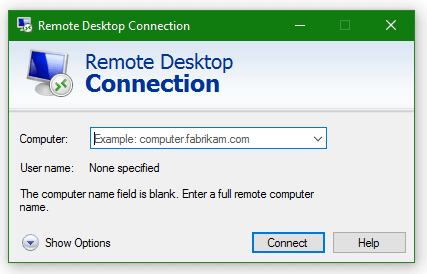
- Type Server IP In "Computer:" Box And Click On Show Options
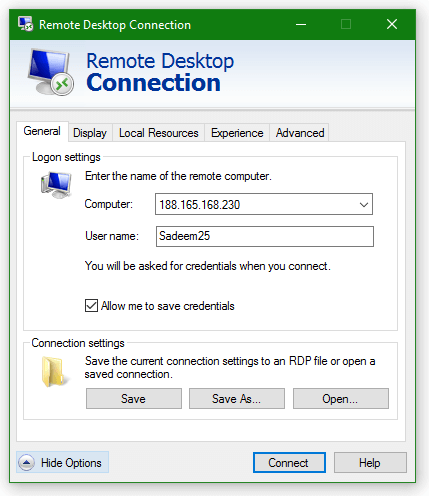
- Now Type Username In "User Name:" Box. Tick "Allow me to save credentials" If You Want To Save Username Permanently Otherwise You Have To Type Username Every Time
- Now Click On Connect
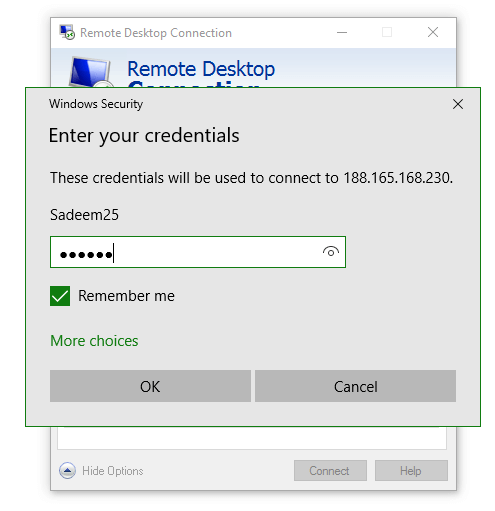
Tick "Remember me" Box If You Want To Save Username & Password Permanently By This You Can Use RDP Next Direct Without Typing Username & Password
- Now Your RDP Logged In And Enjoy Your RDP :)