Best VPS Servers 2026 🥳•VPS Servers for Linux & VPS Servers for Windows•VPS for Gaming Servers•Cheap Servers With Great Performance👍•Dedicated Servers with Private Location•Online Streaming RDP•Supersonic-VPS & Hypersonic-VPS•Streaming RDP•Android Emulator RDP•Python RDP•Forex Trading RDP•Cheap RDP•Instant RDP•Admin Access RDP•Full Root Access•Windows 10 RDP•Windows 11 RDP•Ubuntu RDP•Linux RDP•USA RDP•UK RDP•Buy RDP Online•Dedicated RDP Server•AI RDP•Windows VPS•Secure RDP•24/7 RDP Hosting•Low Latency RDP•CentOS RDP•Debian RDP•Windows Server RDP•Buy RDP with USDT•Buy RDP with JazzCash•Buy RDP with Easypaisa•Buy RDP•Windows RDP•Dedicated RDP•VPS RDP•GPU RDP•Stable Diffusion RDP•ComfyUI RDP•AUTOMATIC1111 RDP•New York RDP•London RDP•Singapore RDP•Tokyo RDP•Frankfurt RDP•Amsterdam RDP•Los Angeles RDP•Chicago RDP•Dedicated IP RDP•Unmetered Bandwidth•99.9% Uptime•DDoS Protection•NVMe SSD Storage•Instant Activation•24/7 Support•Remote Desktop Server•Cloud RDPBest VPS Servers 2026 🥳•VPS Servers for Linux & VPS Servers for Windows•VPS for Gaming Servers•Cheap Servers With Great Performance👍•Dedicated Servers with Private Location•Online Streaming RDP•Supersonic-VPS & Hypersonic-VPS•Streaming RDP•Android Emulator RDP•Python RDP•Forex Trading RDP•Cheap RDP•Instant RDP•Admin Access RDP•Full Root Access•Windows 10 RDP•Windows 11 RDP•Ubuntu RDP•Linux RDP•USA RDP•UK RDP•Buy RDP Online•Dedicated RDP Server•AI RDP•Windows VPS•Secure RDP•24/7 RDP Hosting•Low Latency RDP•CentOS RDP•Debian RDP•Windows Server RDP•Buy RDP with USDT•Buy RDP with JazzCash•Buy RDP with Easypaisa•Buy RDP•Windows RDP•Dedicated RDP•VPS RDP•GPU RDP•Stable Diffusion RDP•ComfyUI RDP•AUTOMATIC1111 RDP•New York RDP•London RDP•Singapore RDP•Tokyo RDP•Frankfurt RDP•Amsterdam RDP•Los Angeles RDP•Chicago RDP•Dedicated IP RDP•Unmetered Bandwidth•99.9% Uptime•DDoS Protection•NVMe SSD Storage•Instant Activation•24/7 Support•Remote Desktop Server•Cloud RDP
Buy RDP Live logo
Tutorials

How To Start Using RDP (Remote Desktop Protocol)

Admin
April 25, 2025
6 min read
How To Start Using RDP (Remote Desktop Protocol)
  1. First Of All, You Need an RDP Buy RDP From Here
  2. When You Order RDP, You Get an Email With Login Details Like This:

Your RDP Login Details:
RDP IP Address: 188.***.***.230
Username: Sa***54
Password: 6xbIFCHl2v

  1. Now Open Remote Desktop Connection Application

In Windows:
Download Remote Desktop Connection Shortcut Then Extract And Open It
OR
Goto >> Start >> Start Menu >> Windows Accessories >> Remote Desktop Connection
OR
C:\ProgramData\Microsoft\Windows\Start Menu\Programs\Accessories >> Remote Desktop Connection
OR
Open Windows 8/8.1/10 Search And Type Remote Desktop Connection
OR
Download Remote Desktop App From Microsoft Store
In macOS/iOS/iPadOS Download Remote Desktop App From App Store
In Android Download Remote Desktop App From Play Store

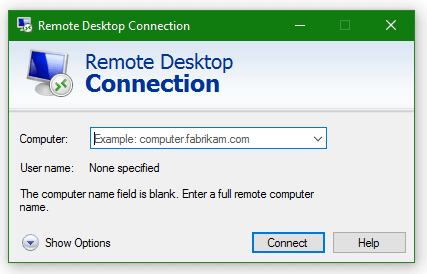
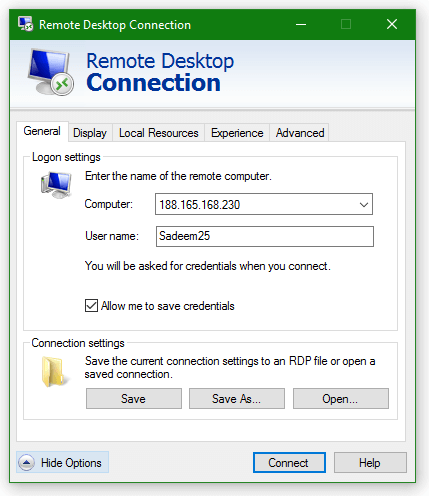
  1. Now You See a Windows Like This
blog-details-img
  1. Type Server IP In "Computer:" Box And Click On Show Options
blog-details-img
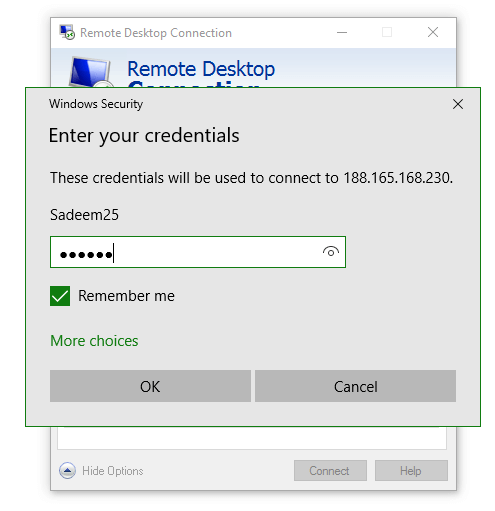
  1. Now Type Username In "User Name:" Box. Tick "Allow me to save credentials" If You Want To Save Username Permanently Otherwise You Have To Type Username Every Time
  2. Now Click On Connect
blog-details-img

Tick "Remember me" Box If You Want To Save Username & Password Permanently By This You Can Use RDP Next Direct Without Typing Username & Password

  1. Now Your RDP Logged In And Enjoy Your RDP :)
Tags