What Is Use Of FileZilla Client & FileZilla Server?
FileZilla FTP Client:
FileZilla FTP Client is used for transferring files from one computer to another through the internet using FTP server and FTP server login details. You can transfer your files from one computer to a second computer and from the second computer to the first computer. You will have access to selected drives, folders, and files.
FileZilla Server:
FileZilla Server is used to create an FTP server on a computer to allow access to drives, folders, and files. This is a small program that you just install on the computer from which you want to transfer files to another computer. You can also install FileZilla Server on the receiving computer, but you have to grant permission to the sender to read/write files on your computer.
How To Setup FileZilla Server & Create Account?
- First, you need to install FileZilla Server on the remote computer (sender). In all our RDP servers, FileZilla Client and FileZilla Server are already installed. You may find shortcuts on your desktop and in the Start Menu. Run FileZilla Server and also FileZilla Server Interface.
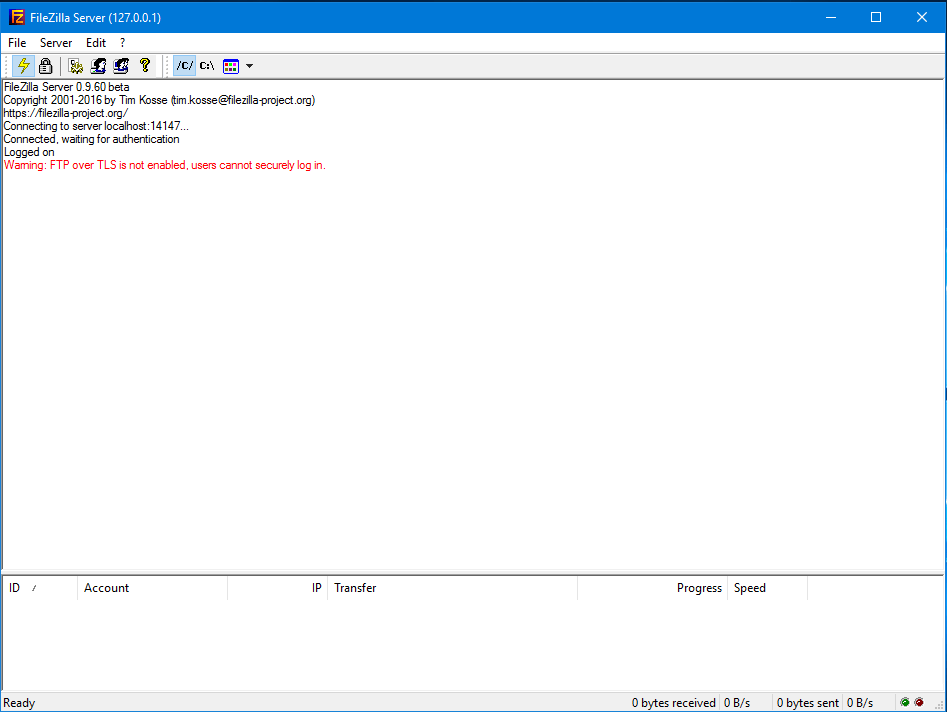
Now create your FTP login username, set a password, and also set directories to give access from where you want to transfer files to another computer.
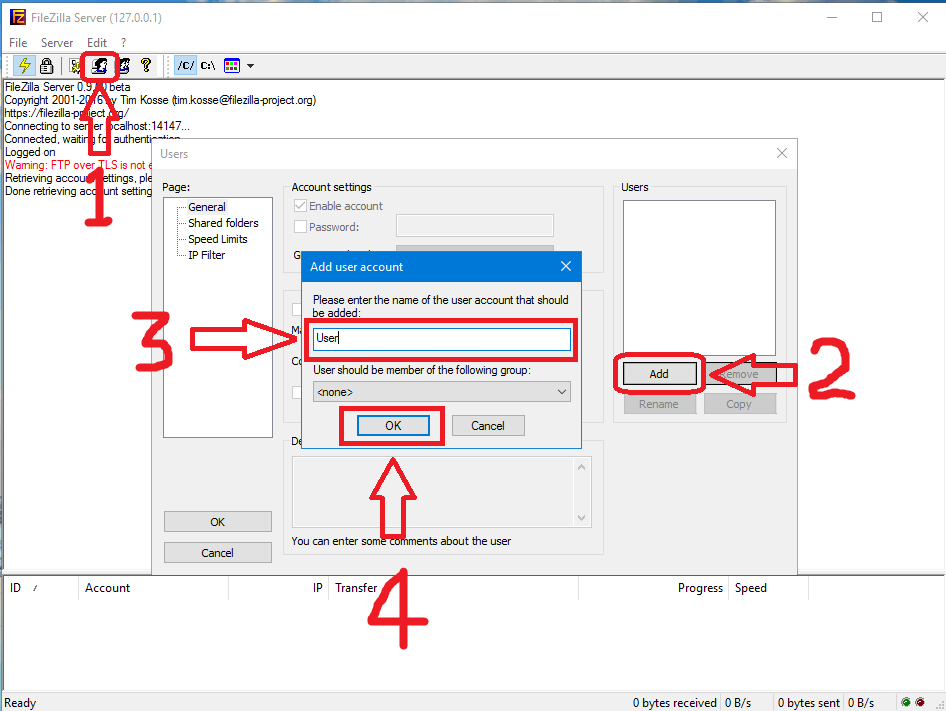
-
Go to >> Edit >> Users
OR
Click on the 4th User icon - Click on Add
- Type your username which will be used for login
- Click on OK
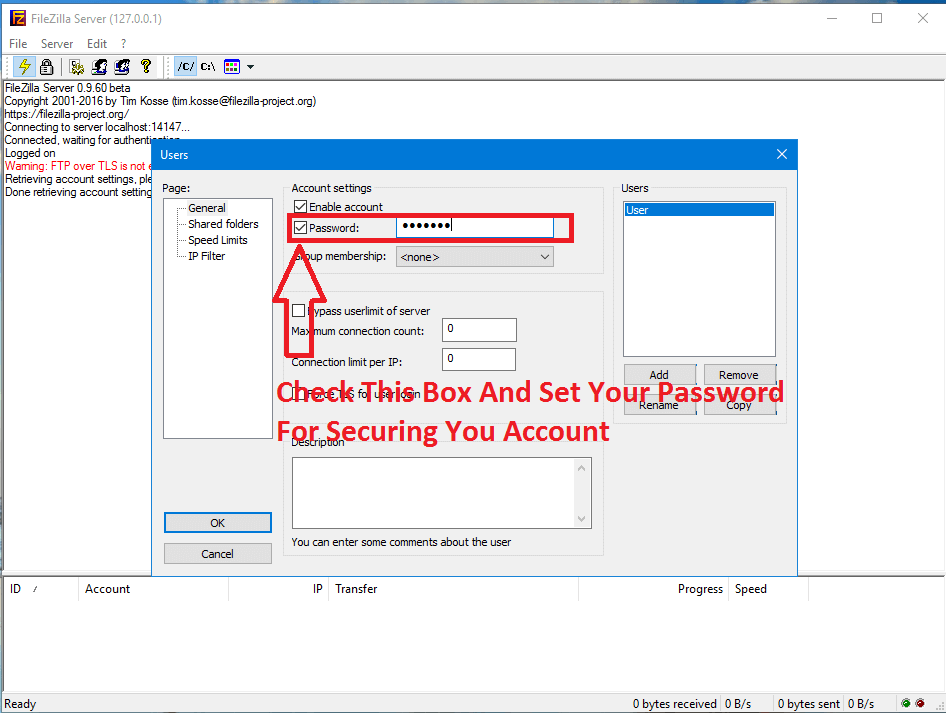
- Tick the Password box and set your password. This will be used for login to your account.
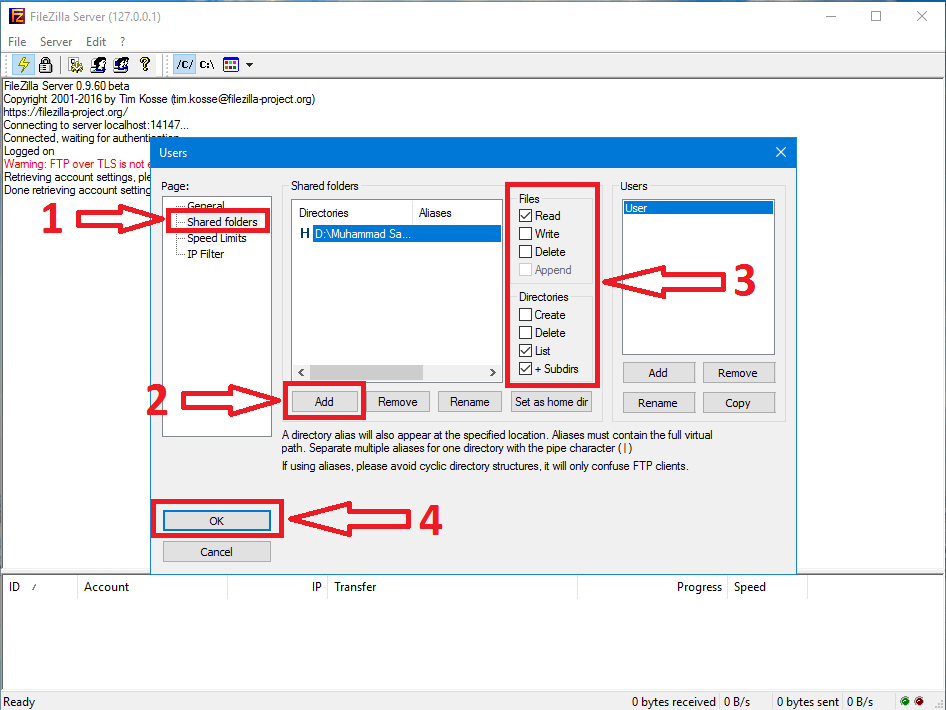
- Click on Shared Folders
- Click on Add and select the folder which you want to share with the FTP server or want to share transfer files and folders to another computer
- Set permissions to your directory for what users can do and which permissions you want to allow to the FTP account
- Click on OK
Permission Details:
- Read: FTP user can read/view your files/folders
- Write: FTP user can copy files to your remote server (FileZilla Server computer)
- Delete: FTP user can delete any of your files/folders
- Create: FTP user can create new folders/files on your remote server (FileZilla Server computer)
- Remove: FTP user can delete files/folders from your remote server (FileZilla Server computer)
- List: FTP user can view files/folders names on your remote server (FileZilla Server computer)
- Sub Dir: FTP user can view subdirectories of your folders on the remote server (FileZilla Server computer)
Best Choice: Keep Default Option (Permissions)
- Now save settings and FileZilla Server setup is done :)
How To Use FileZilla FTP Client?
1. Download and install FileZilla Client on your computer
Type your FTP server login details:
Host: (Your FileZilla Server IP or your RDP Server IP)
User: (Your FileZilla Server username)
Password: (Your FileZilla Server user password)
Port: (Leave empty or type 21)
For Example:
Host: 5.xx.xx.54
User: User
Password: ******
Port: 21
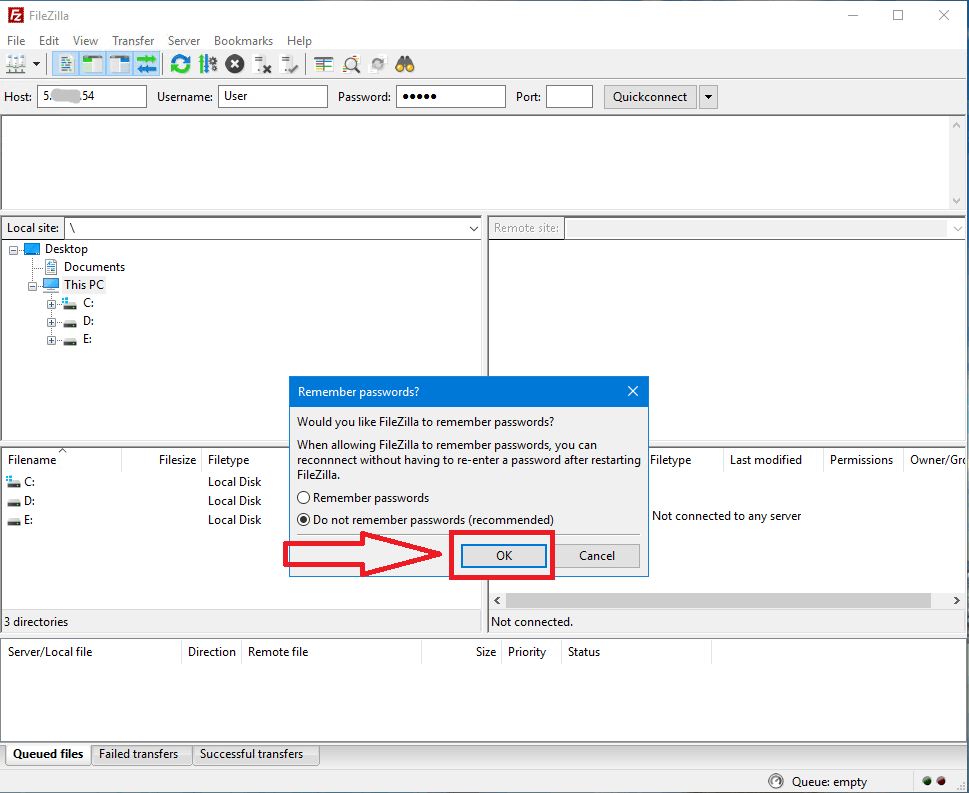
When you click on OK, you will be logged into the FTP client.
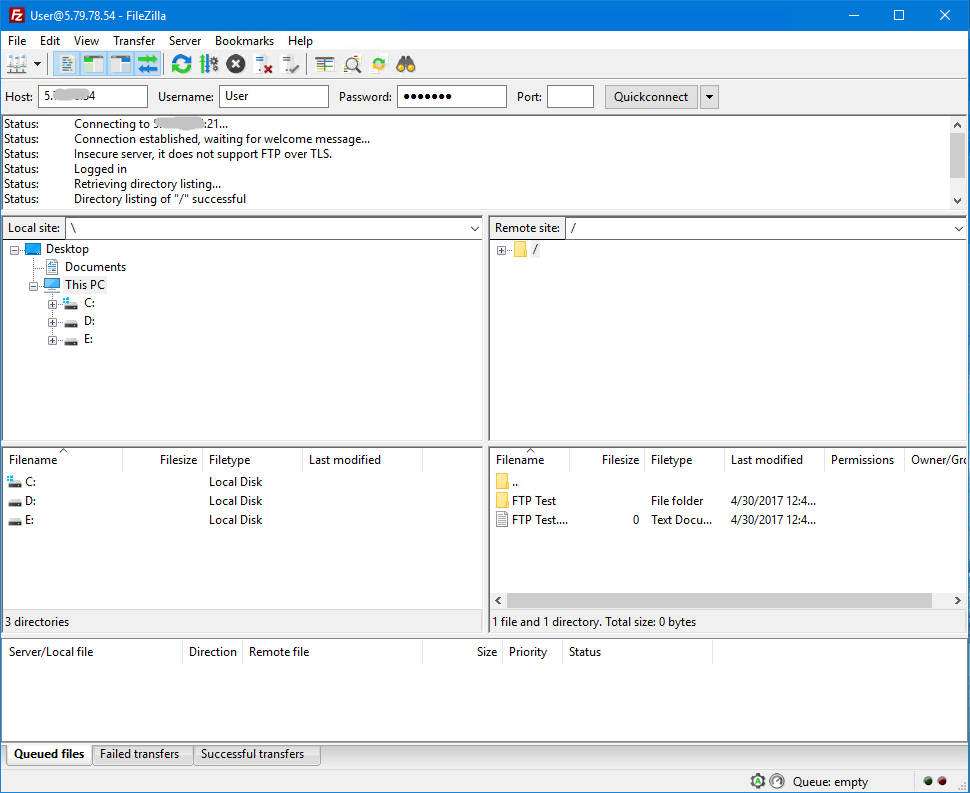
How To Transfer Files?
Just select your folder where you want to save files and drag & drop files/folders to your directory, or right-click on the remote server file/folder and click on Download. You can download multiple files/folders at the same time.
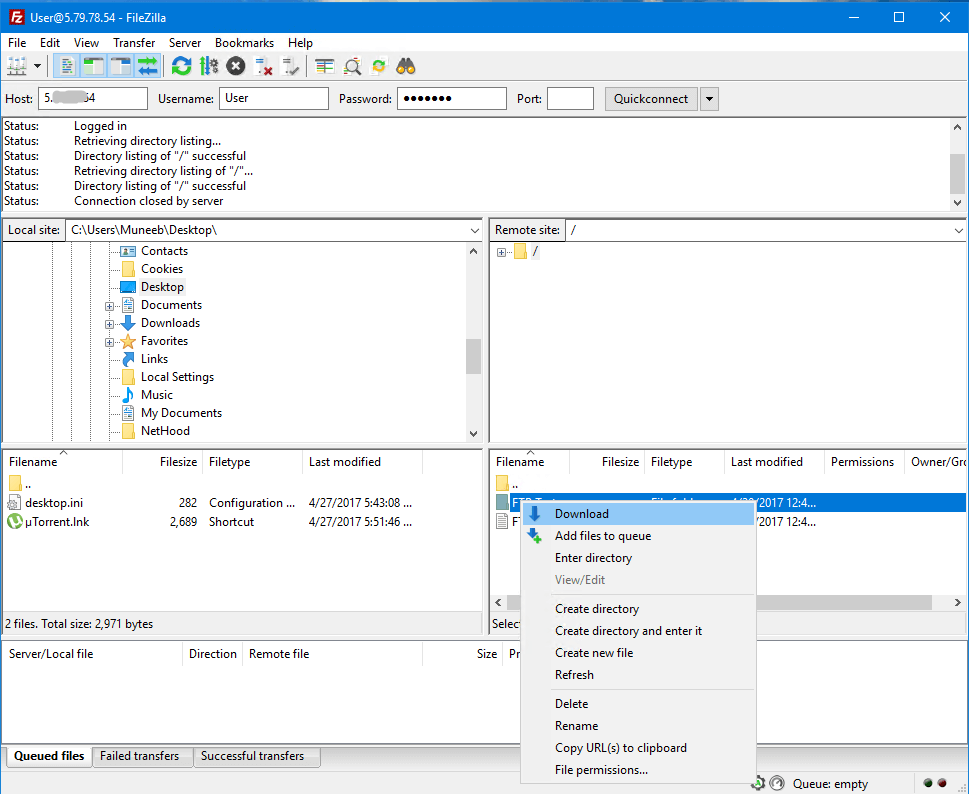
Done and enjoy!
Share with your friends and enjoy BuyRDPLive services.